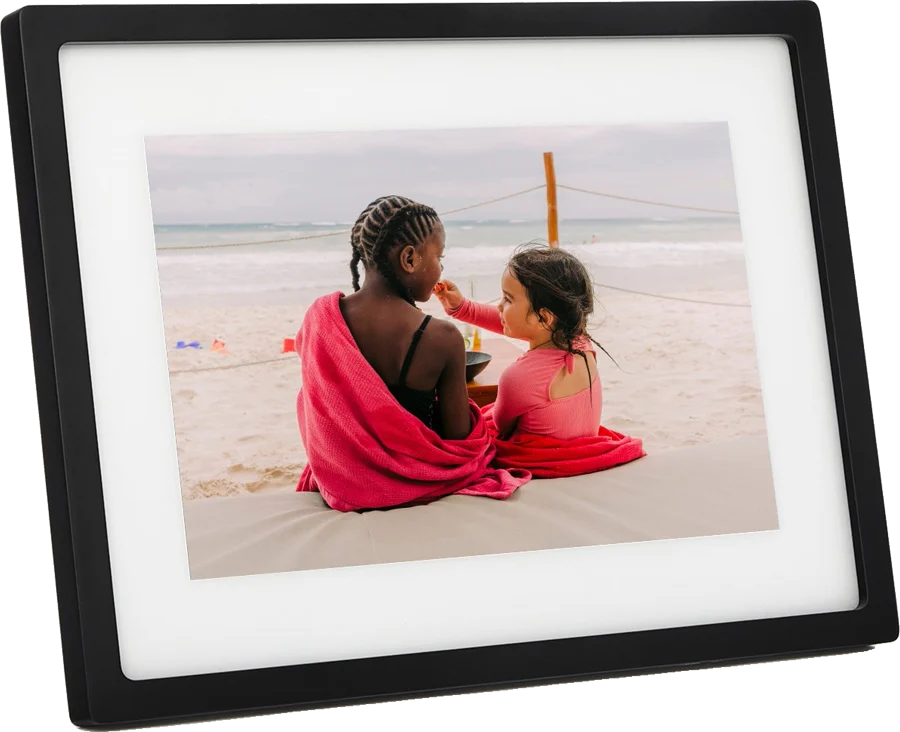
The Skylight Frame is a 10 inch touchscreen digital photo frame for sharing family photos. It suits grandparents and anyone who wants photos without an app to learn. Skylight says photos sent from its free app or by email arrive in under 60 seconds Skylight.
Skylight Frame at a glance
10inch
Screen
8GB
Storage
Under 60 seconds
Photos arrive in
10minutes or less
Setup
Skylight lists these specs on its Frame page and on the technical specifications page for the 10 inch Frame Skylightspecs.
Screen
10 inch, 1280x800 IPS touchscreen
Storage
8GB, up to 8,000 photos
Photos arrive in
Under 60 seconds
Setup
10 minutes or less
Size
12 x 8.5 x 1 in
Weight
27 oz / 757 g
Photo formats
JPEG, HEIC, PNG
Video formats
MP4, MOV, GIF, with Frame Plus
Power
USB-A adapter, 100 to 240V, supplies 12V
Cable
6 foot USB-A to barrel connector
Battery
None, stays plugged in
Camera and microphone
None
Colors
Black, Silver, White, Gold
Sizes in the range
10 inch and 15 inch
How big is the Skylight Frame?
It measures 12 inches wide, 8.5 inches tall and 1 inch deep, and weighs 27 oz specs. That is close to the footprint of a sheet of letter paper.
How many photos does the Skylight Frame hold?
Skylight lists 8GB of storage and up to 8,000 photos Skylight. Support adds that a very full Frame replaces the oldest photos with new ones as they arrive support.
What file types does the Skylight Frame support?
Skylight support lists jpeg, heic and png for photos, and mp4, mov and gif for video file types. The Frame product page lists JPEG, BMP, PNG and GIF Skylight. The apps add GIF, AVI, MKV, 3GP, 3G2 and webm.
Skylight Frame or Frame 2?
Pick the 10 inch Frame for the smallest model in the range. Pick the Frame 2 for a 1920x1200 screen, 16GB and swappable magnetic Snap Frames Skylight. Pick the 15 inch Frame for the largest screen Skylight.
→You want a sharper screen: pick the Frame 2 Skylight.
→You want a bigger picture: pick the 15 inch Frame Skylight.
→You want chore charts and calendar sync: pick the Skylight Calendar Skylight.
Good to know before you buy
!
Video sending comes with a Frame Plus subscription. Photos work without one, so add Plus if you want clips and captions support.
!
The Frame has no battery. Keep it within reach of an outlet, because it needs mains power to run support.
!
Each upload must stay under 25 MB. Send 20 items or fewer per batch in the app, and keep emails under 25 MB support.
!
A full Frame replaces the oldest photos. Delete photos you have finished with, or move to a 16GB model support.
!
Skylight's own return window and 3-year Promise cover myskylight.com orders. Devices bought from Amazon or a store follow that seller's returns process returnsPromise.
Note
Skylight ships the US model with a North America plug, and lists a universal 12V adapter for the UK and Australia specs.
How the Skylight Frame compares
Skylight Frame vs Aura Carver
Both are 10 inch frames at 1280x800, and both take photos from a phone app or email. Skylight stores photos on the device and sends video with Frame Plus. Aura lists unlimited photos and videos with no subscription fees, and videos up to 30 seconds Aura.
Both are 10.1 inch class touchscreens at 1280x800. Skylight keeps 8GB of photos on the Frame itself. Nixplay works from cloud storage, with 500 MB on the free plan and more on Nixplay Plus Nixplay.
Two ways. You can use the free Skylight app, or email photos as attachments to the Frame's own address Skylight. Skylight says photos arrive in under 60 seconds.
Every Frame gets its own email address, which you pick during setup activation. You choose the first part of the name, and the address ends in @ourskylight.comsupport. Share that address with family and they can send straight to the screen.
Photos must arrive as attachments, not as links support. The app takes 20 items or fewer per upload, under 25 MB in total.
Tip
Tap the screen and go to Settings›How it Works to see the Frame's email address support.
Does the Skylight Frame need a subscription?
No. Skylight says family can share photos through the free app or by email, with no account or subscription Skylight. Your photos are also backed up in Skylight's Cloud Portal, which you can open without Frame Plus support.
Frame Plus is the paid add-on. Skylight's guide lists video uploads, captions, downloads, privacy controls and the mobile app for managing photos Plus guide. One Frame Plus account works with all your Skylight Frames and everyone in the family.
Does the Skylight Frame play videos?
Yes, with a Frame Plus subscription support. Skylight lists mp4, mov and gif as the video file types, and the apps add several more file types.
Sound has its own switch. Open Display in the device menu and turn on Start videos with sound onsettings.
Does the Skylight Frame need WiFi?
It needs WiFi to receive new photos. Skylight lists an Offline Mode for viewing the photos already on the Frame without a WiFi connection Skylight. Photos sit on the Frame itself, so the slideshow keeps running.
Is the Skylight Frame private?
Skylight lists no camera and no microphone on the 10 inch Frame specs. You also set who may send photos during setup, with Senders who I approve or Anyoneactivation.
A second setting controls what senders see. Choose All photos or Only photos they have sent. A newly activated Frame starts in Private mode, so a new sender needs approval by email first support.
What you can change in the settings
Tap the screen to bring up the menu bar, then open the device menu settings:
Device Nickname names the Frame.
Display holds the brightness slider, from 0 to 100%.
Slideshow sets the speed, from 5 seconds to 4 minutes.
Slideshow Style switches between chronological and random.
Show heart icon turns the favorites button on and off.
Blur background fills the edges around a photo.
Sleep Mode holds the daily schedule and Enter Sleep Mode Now.
How to set up and use it
Plug the USB end of the power cable into the wall adapter.
Connect the round end to the port on the back of the Frame.
Plug the adapter into an outlet and wait about 30 seconds for the home screen.
Pick your network from the WiFi menu on the right of the screen.
Type the WiFi password on the touchscreen keyboard.
Open the Skylight app and choose Add device, then Skylight Frame, then New device.
Choose Me or Someone else, then select Confirm.
Type the first part of the email address for this Frame.
Set who can send photos and what they can see.
Tap Next through the rest of the screens.
Type the activation code from the app into the Frame, then select Done.
Skylight says setup takes 10 minutes or less, and the desktop app follows the same steps activation.
How Gift Mode works
Gift Mode loads your photos before the box is opened Skylight. You set the Frame up in the app, then hand over a code with the gift gift mode.
Open the Skylight app and tap Add.
Choose Yes, I have my own Skylight device, then Skylight Frame.
Tap Someone else and confirm.
Type the recipient's name, then tap Next.
Set the first part of the Frame's email address, using letters, numbers, underscores or dashes.
Set who can send photos and what they can see.
Invite other family members with the Frame link, if you want to.
Tap Add to upload photos from your gallery or camera.
Tap the new Frame in the device list, then tap Get activation code.
Give the 6-digit code to the person opening the gift.
Their Frame fills with your photos as soon as they enter the code gift mode.
Care and quick fixes from the manual
How to change or reset the WiFi
Tap the screen to bring up the menu bar at the top.
The Frame itself handles photos one at a time. For batches, use the mobile app or the online Cloud Portal support.
How to put it to sleep
Press the round button on the back once for a quick sleep sleep. Hold the same button until the pop-up appears, then tap Power Off.
For a daily schedule, tap the screen, choose Sleep Mode, confirm your time zone and set a start and end time. Tap Save. The Frame then sleeps and wakes at those times every day.
Skylight Frame FAQ
Is the Skylight Frame the same as the Skylight Calendar?
No. The Frame is a photo frame. The Calendar is a family hub that syncs Google, Apple, Outlook, Yahoo, Cozi and Readdle calendars Skylight. It adds chore tracking and lists, and puts the photo screensaver under Calendar Plus.
Can you hang the Skylight Frame on a wall?
Skylight says every device includes parts to mount or place it mounts. That is a stand for a flat surface, or a mount for a wall. The page does not say which part comes with the 10 inch Frame.
What colors does the Skylight Frame come in?
Skylight lists Black, Silver, White and Gold Skylight.
Does the Skylight Frame shuffle photos?
Yes. Open Slideshow in the device menu and set Slideshow Style to random settings.
Where are the photos kept?
On the Frame, and in Skylight's Cloud Portal as a backup support. Skylight says the backup lets it move photos back to a Frame if one is damaged.
How much is the Skylight Frame?
See today's price with the link above.
The verdict
4/4 PASS
No. 015 · Skylight Frame
Sharing family photos with people far away.
The Skylight Frame suits a family that wants photos on a relative's shelf, with no app for them to learn. Skylight gives it a 10 inch touchscreen, 8GB for up to 8,000 photos and its own email address. Add Frame Plus for video clips and captions. Pick the Frame 2 or the 15 inch model for a sharper or bigger screen.
 4/4 PASS